
Steps
- Sales & P&L > Monthly dashboards (or Overview), choose the month at Months and click Open month.
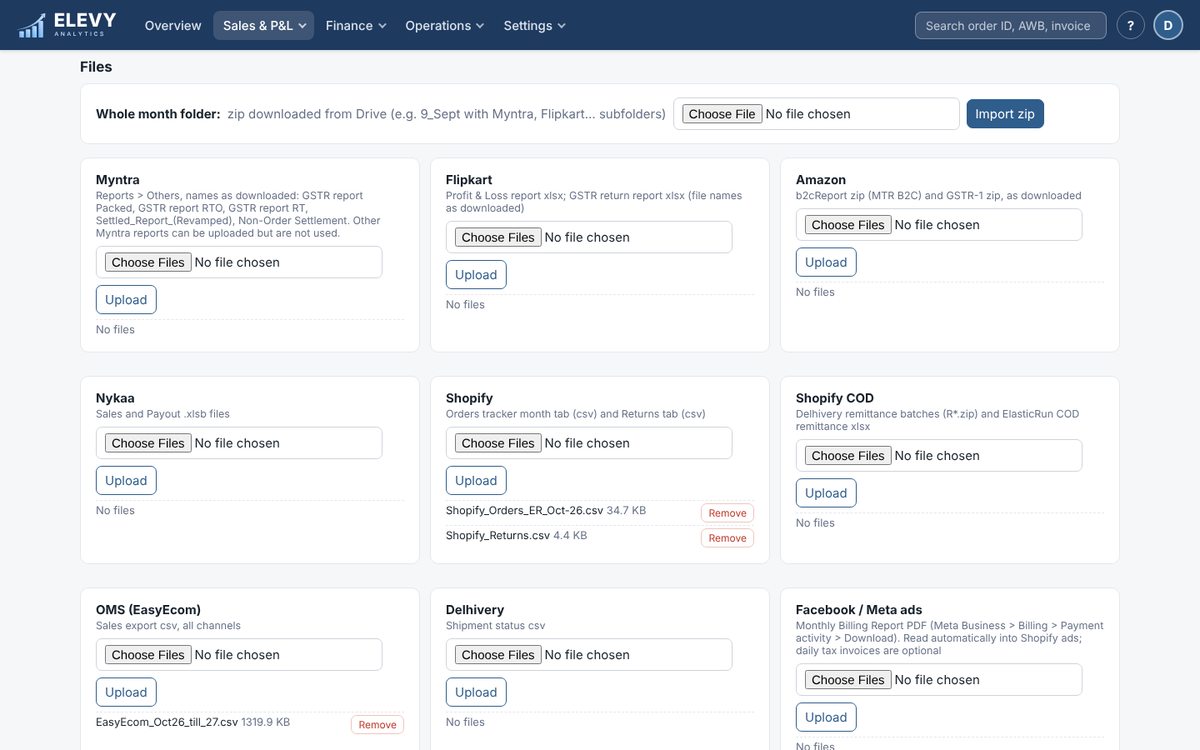
- Drop all the month's files on the upload box at the top (or click to choose them): each file is recognised by its name and contents and filed in the right platform. Or use Add / Replace in a platform's box.
- Each platform box is a checklist of the reports it needs (required) and can use (optional), with '3 of 4' at the top. A ✓ means the report is in.
- Remove a wrong file with its Remove button.
Good to know
- Upload the OMS export first (OMS, OMS, OMS or 3PL, recognised automatically): it gives live figures for marketplaces whose reports are not out yet. Buyer names, phones and addresses are removed on upload.
- Myntra box: also takes the Order Flow report (any name, e.g. part-0...c000.csv). Until the GSTR reports are out it sets each item's status: delivered, RTO, customer return or exchange.
- Flipkart box: also takes the Orders report from Seller Hub (Orders > Download). It updates the status of P&L lines and adds the orders placed after the P&L was downloaded (priced from the OMS, fees estimated). Each order item counts once; the newest download wins.
- Myntra and Flipkart Ads reports dropped in the platform box are moved to the Ads page for that month.
- Flipkart box: also takes Payments > Settled Transactions. Any download works: the whole month, a single payout (one NEFT), or a quarter. It confirms what Flipkart actually paid to the bank, by NEFT, for every order; a payment found in several files counts once. File a download in the month it was paid (a quarter in its last month). Fines deducted from payouts are added to costs, from the monthly downloads only.
- Flipkart box: the Profit & Loss report can be downloaded again later in the month; the one with the newest 'Generated on' date is used, so older downloads can stay.
- Flipkart box: also takes the GSTR return report (GSTR-1 tables) and the Sales Report (order-level GST register, including its Cash Back sheet). Without the Sales Report the register is built from OMS's Flipkart lines, with a note asking for it.
- Myntra box: also takes the Reconciliation Dashboard Report (Partner Portal, one csv per order month). It gives each order line's status and the prepaid / postpaid amounts Myntra settled, with UTR and date. Customer PIN codes are removed on upload.
- Payment files (Flipkart Settled Transactions, Myntra Settled Report, Amazon settlements, Nykaa payouts, Delhivery / 3PL COD remittances, gateway settlements) are matched to their orders by order ID or AWB, whichever month you upload them in. After uploading, use Refresh data so the months they pay update.
- A whole folder can be uploaded as one zip with Upload folder zip.